[Education, Next.js, Deployment, Hostinger]
How to Deploy a Next.js Static Site to Hostinger Shared Hosting (No Node Server Needed)
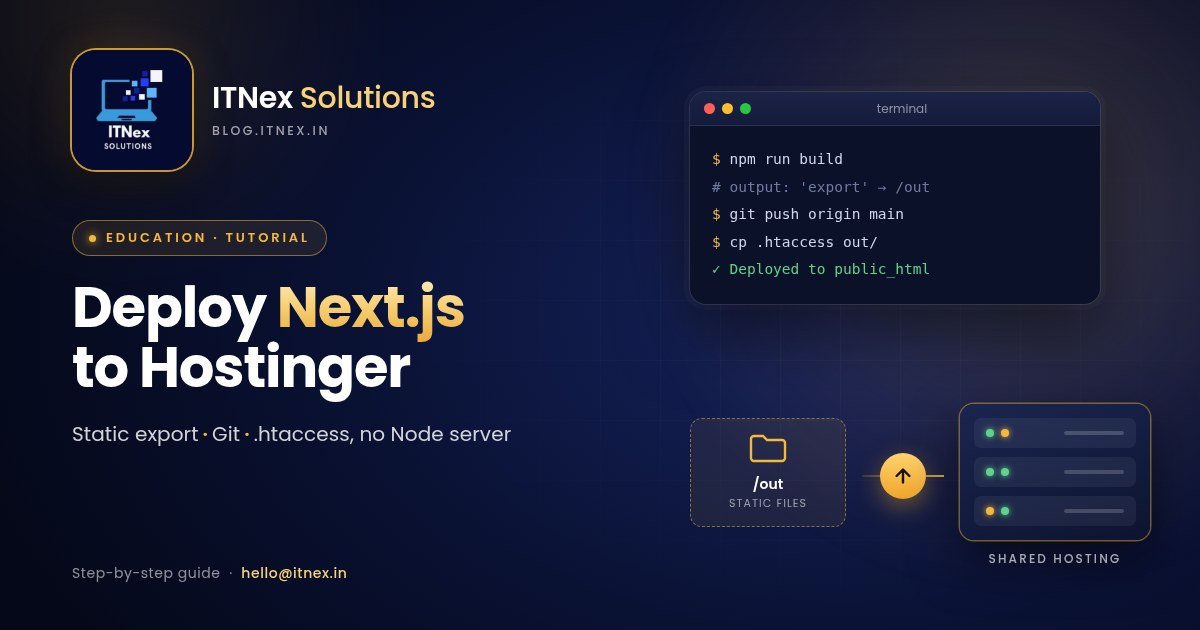
Next.js is usually deployed on platforms that run Node.js, but most small businesses in India already pay for shared hosting such as Hostinger, which serves plain files through Apache. The good news is that you don't need a Node server at all. With static export, Next.js builds your whole site into HTML, CSS and JavaScript files that any shared host can serve.
This is exactly how we deploy itnex.in and client sites such as LumiNova. This guide walks through the full process, from config to going live.
When static export is the right choice
Static export suits sites where pages can be built ahead of time: business websites, portfolios, landing pages, documentation and blogs that pull content at build time. It is not suitable if you rely on features that need a running server, such as API routes, server actions, middleware, or pages rendered fresh on every request. If you need those, keep them in a separate backend (we use a Laravel API on the same hosting) and let the Next.js site call it.
Step 1: Turn on static export
Open next.config.ts and set the output mode to export:
import type { NextConfig } from "next";

const nextConfig: NextConfig = {
  output: "export",
  images: {
    unoptimized: true,
  },
};

export default nextConfig;
images.unoptimized is needed because the built-in image optimiser runs on a server. With it turned off, next/image still works, but serves your images as they are, so compress them before adding them to the project.
Step 2: Build and check the output
Run:
npm run build
Next.js writes the finished site into an out folder. Open it and you will see an .html file for each page, plus a _next folder with your scripts and styles. If the build fails, the error usually points to a feature that needs a server, such as an API route or a dynamic page without generateStaticParams.
To preview the build locally before uploading, serve the folder with any static server, for example npx serve out.
Step 3: Make clean URLs work with .htaccess
Here is the step most guides miss. Next.js exports a page such as /services as services.html, and sometimes also creates a services folder for that route's data files. Apache will try to open the folder and return a 403 or 404 instead of your page.
Add an .htaccess file to the root of your upload so Apache serves the matching .html file whenever one exists:
RewriteEngine On

# Serve the matching .html file whenever one exists, even if a
# same-named directory also exists
RewriteCond %{REQUEST_FILENAME} !-f
RewriteCond %{DOCUMENT_ROOT}/%{REQUEST_URI}.html -f
RewriteRule ^(.*)$ $1.html [L]

# Custom 404 page
ErrorDocument 404 /404.html
This is also the right place for permanent redirects when you rename a page, for example:
RewriteRule ^portfolio/old-page-name/?$ /portfolio/new-page-name [R=301,L]
Put redirect rules above the .html rule so they run first.
Step 4: Upload the site
There are two ways to get the files onto Hostinger.
Option A: File Manager (quickest for a first deploy)
- Zip the contents of the out folder (the files inside it, not the folder itself), together with your .htaccess.
- In hPanel, open File Manager and go to your domain's public_html folder.
- Upload the zip, extract it there, and delete the zip.
This works, but you repeat it by hand every time you change the site.
Option B: Git deploy branch (what we use)
For sites that change often, we keep the built files in a separate Git branch called deploy. The main branch holds the source code; the deploy branch holds only the contents of out plus .htaccess.
The deploy routine is:
- Build the site with npm run build.
- Copy the contents of out into a checkout of the deploy branch (a Git worktree keeps this tidy), and write the .htaccess file.
- Commit and push the deploy branch to GitHub.
- On the server, pull the latest build:
cd domains/yourdomain.com/public_html
git pull origin deploy
The first time, you clone the deploy branch into public_html instead of pulling. This needs SSH access, which you can check and turn on under your plan's advanced settings in hPanel. We wrap steps 1 to 3 in a single script, so deploying a change takes one command on our side and one git pull on the server.
The advantage is that every deploy is a Git commit. If something goes wrong, you can roll back to the previous build in seconds.
Step 5: Turn on SSL and check the live site
In hPanel, make sure the free SSL certificate is active for your domain and that HTTP traffic is forced to HTTPS. Then check:
- The home page and a few inner pages load, including with and without a trailing slash.
- A made-up URL shows your custom 404 page.
- Images, fonts and styles load (open the browser's developer tools and look for red errors in the Network tab).
- Your sitemap.xml and robots.txt open in the browser.
Common problems
- 403 Forbidden on an inner page: the .htaccess rule is missing, or it was uploaded somewhere other than the root of public_html.
- Styles missing after upload: the _next folder didn't upload, often because hidden or underscore folders were skipped. Re-upload it.
- Old version still showing: clear your browser cache, and purge Hostinger's cache in hPanel if it is turned on.
- Build error about dynamic routes: add generateStaticParams to the dynamic page so Next.js knows which pages to build.
Need a hand?
If you'd rather not deal with builds and servers, we build and deploy fast, SEO-ready websites for businesses in Guwahati and across Assam. See our website development page, or get in touch for a free digital audit of your current site. You can also email hello@itnex.in or call +91 7002593480.